There is a particular kind of frustration that only happens with long video files. You know exactly what you are looking for — the moment the delivery van pulled up, the slide where the budget numbers appeared, the two seconds where your cat did the thing. You can picture it. And yet finding it means dragging a playhead back and forth across a two-hour timeline, overshooting, going back, overshooting again.
Most people accept this as unavoidable. It isn't. The reason it feels unavoidable is that we reach for the wrong method first.
Why scrubbing fails, mathematically
When you drag along a timeline, you are doing a linear scan. Every position you check eliminates only that position. In a two-hour recording, if you check a new spot every four seconds, and the moment could be anywhere, you will on average burn twenty to forty minutes finding it — and that assumes you recognise it the instant it flashes past, which at scrub speed you often don't.
Worse, scrubbing has a failure mode that wastes even more time: you scrub past the moment without seeing it. Thumbnail previews render only a handful of frames per second of dragging. A three-second event can fall entirely between two rendered previews. Then you conclude "it's not in this half", and you go hunt in the wrong half.
A video file has no index. A 300-page book has a table of contents and page numbers; a two-hour video has one number — its duration. Everything else you have to discover by watching. Every method below is really a way of adding an index to something that shipped without one.
Method 1: Binary search the timeline (free, works right now)
If you only need to do this once, don't scrub — halve. This is the single highest-value trick in this article and it costs nothing.
The method works whenever you can answer one question at any point in the video: "has the thing I'm looking for already happened?" That is true for most searches — a person who arrives and stays, a meeting that moves through an agenda, a game that progresses, weather that changes.
- Jump to the middle. In a 2:00:00 video, press the position for 1:00:00. Don't drag — click directly on the timeline, or use your player's "go to time" box.
- Ask: has it happened yet? Watch three seconds. If the van is already parked, the arrival was before this point. If the driveway is empty, it was after.
- Halve the remaining half. If before, jump to 0:30:00. If after, jump to 1:30:00. Repeat.
- Stop when the window is small enough to watch. After about seven halvings you are inside a one-minute window. After eleven, you are within four seconds.
Eleven checks at roughly five seconds each is under a minute of work — versus twenty-plus minutes of dragging. The whole reason this feels unnatural is that dragging looks like progress while halving looks like guessing. The maths says otherwise.
In VLC, Ctrl/Cmd + T opens "go to time" so you can type a timestamp exactly. In most browser players and YouTube, pressing number keys 0–9 jumps to 0%–90% of the duration instantly — which is a ready-made coarse binary search.
When binary search does not work
It breaks down when the thing you want appears and disappears. If a red car drives past once for two seconds, then at 1:00:00 there is no red car — but that tells you nothing about which half it was in. For momentary events, halving is no better than guessing, and you need one of the methods below.
Method 2: Search the transcript — and know its blind spot
If your video has speech, generating a transcript gives you a genuine text index. Search the transcript for a word, get a timestamp, jump there. For lectures, interviews, podcasts, and meeting recordings this is often the fastest possible route.
But transcripts have one blind spot that catches people out constantly:
Nobody in a security recording announces "a person in a red jacket is now entering". Nobody narrates a drone shot. Gameplay, dashcam footage, B-roll, timelapses, and baby monitors are frequently silent. If the thing you are looking for was seen and not spoken, no transcript search will ever find it.
This is the split that determines which method you need. Ask yourself: was the thing I'm looking for said, or seen? Said → transcript. Seen → keep reading.
Method 3: Scene thumbnails and contact sheets
A middle ground that works offline and costs nothing but disk space: generate a grid of thumbnails — a "contact sheet" — from the whole video, then scan it with your eyes.
Your visual system is extremely good at spotting one odd tile in a grid of a few hundred. A two-hour video sampled once every ten seconds gives 720 thumbnails, which fits on two or three screens. Spotting "the frame where the room went dark" in that grid takes seconds.
The limits are practical. It works well for changes that are visually obvious at thumbnail size — a location change, lights on or off, a crowd appearing. It fails for anything small or detailed: you will not spot a dropped set of keys, a specific person's face, or a label on a box in a 160-pixel-wide tile. And it does not scale: this is a per-video technique, so searching across forty videos means forty contact sheets.
Method 4: Index the footage once, then search it by description
The three methods above are all ways of manually compensating for a missing index. The durable fix is to actually build one — not of the words, but of what is visible in the picture.
Modern image-understanding models can place a picture and a phrase into the same "meaning space", which means a piece of software can compare the sentence "people on a tropical island" against every frame of your footage and rank which frames match. You are not tagging anything by hand and you are not relying on filenames.
Once the footage is indexed, finding a moment stops being a search through time and becomes a search through content — you type what you remember seeing, and you get timestamps.
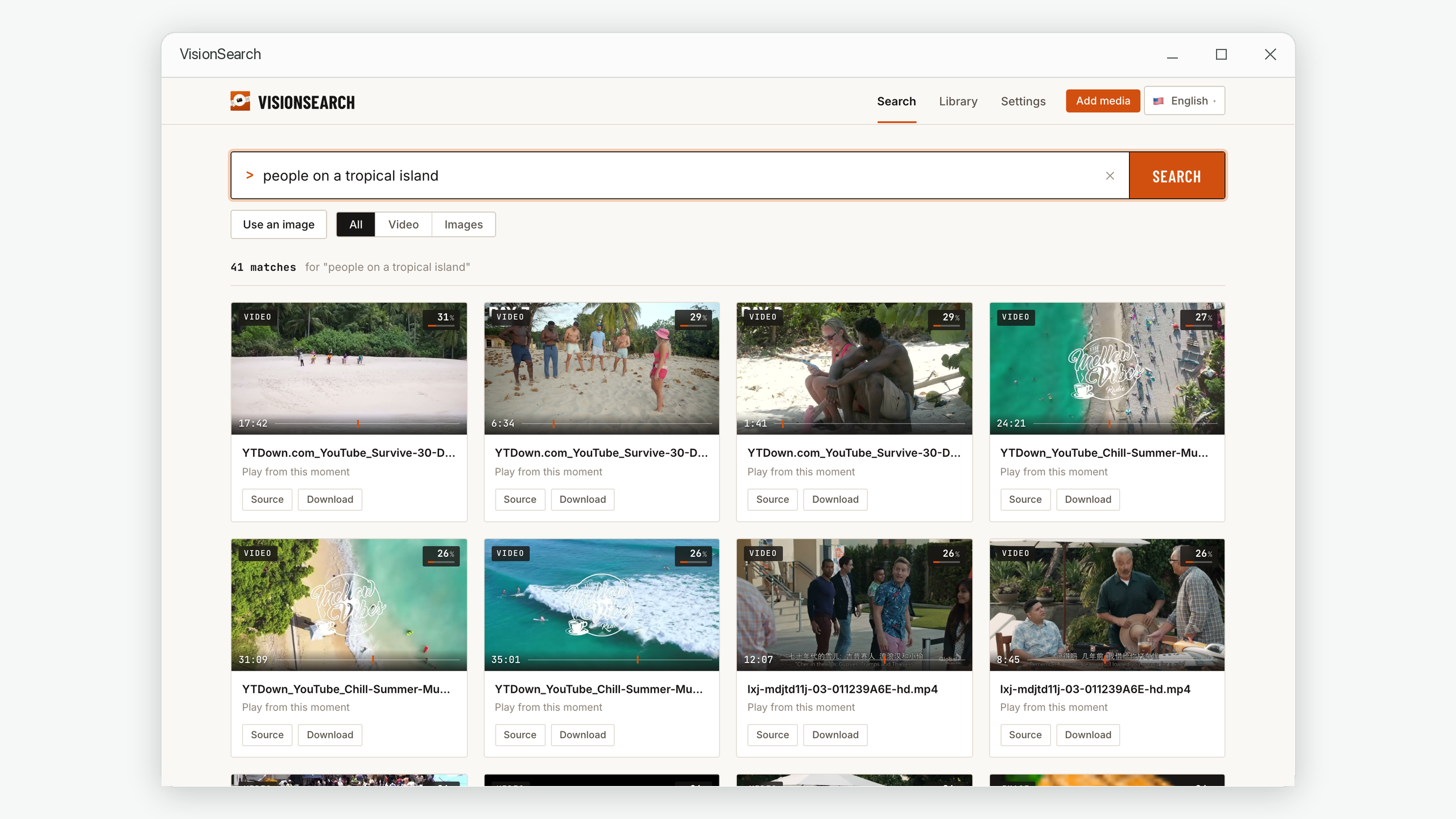
The important detail is the timestamp on each result. The answer to "where is that moment" is not "somewhere in this video" but 17:42. Clicking the result opens the video at that second.
What indexing actually involves
It is worth being clear about the cost, because it is front-loaded:
- One-time processing per file. The video is sampled frame by frame and each frame is analysed. A long file takes a while the first time — this runs in the background while you do something else.
- Near-instant searching afterwards. Once indexed, a search across your whole library returns in well under a second, no matter how many hours of footage you have.
- It pays off with repetition. For one lookup in one video, binary search wins. For a library you will search again and again, indexing wins by an enormous margin.
This is exactly the trade-off a book's index makes: someone spends hours building it once so that thousands of future lookups take five seconds each.
Choosing the right method
| Your situation | Best method | Why |
|---|---|---|
| One lookup, one video, event that persists | Binary search | Free, no setup, under a minute |
| Lecture, interview, or meeting with clear speech | Transcript search | The words are the index |
| Looking for an obvious visual change | Contact sheet | Your eyes scan a grid faster than a timeline |
| Silent footage, momentary event | Visual indexing | Nothing else can find what was never said |
| Same footage searched repeatedly | Visual indexing | Setup cost amortises across every future search |
| Searching across many files at once | Visual indexing | Per-video methods don't scale past a handful |
Writing a search that actually finds the moment
If you go the indexing route, the phrasing of your search matters more than people expect. Three rules cover most of it:
- Describe the picture, not the story. The model sees a frame, not a narrative.
man in a red jacket standing in a doorwayworks;the moment he realised he was latedoes not, because that isn't visible. - Two or three concrete details beats one word.
beachreturns everything beach-like.people with umbrellas on a sandy beachputs what you want at the top. - If nothing matches, get more general, then narrow. Start broad to confirm the footage contains anything like it at all, then add detail. Going the other way leaves you unsure whether your phrasing or your memory was wrong.
Match scores in visual search are a ranking signal — they say "this frame is more like your description than that one". A 26% top result is not a failure; it usually still is the right frame. Read the order, not the number.
Frequently asked questions
How long does indexing a two-hour video take?
It depends entirely on your computer, and it runs in the background rather than blocking you. The practical way to think about it: start the import before lunch or overnight, and treat the footage as searchable from then on, permanently. You index a file once, not once per search.
Do I need an internet connection for any of this?
Binary search and contact sheets are entirely local. Transcription and visual indexing can be either — some services upload your footage to a server, others run the analysis on your own machine. For anything private (home security, family video, client work, medical or legal recordings) this distinction matters a great deal, and it is worth checking before you upload anything.
Can I search for a person's face rather than a description?
Description-based visual search finds people by their visible attributes — clothing colour, posture, setting, what they are holding — rather than by identity. "Woman in a blue coat carrying a box" is the kind of query that works well. Recognising a specific named individual is a different technology with meaningfully different privacy implications.
What if the moment I want is genuinely not in the video?
This is more common than people admit, and it is worth ruling out early — hours get lost searching footage that never contained the event. Binary search is a good sanity check: if the state at the halfway point contradicts your memory of the sequence entirely, you may be thinking of a different recording or a different day.
Stop scrubbing. Search what you saw.
Vision Search indexes your videos and photos on your own computer, then lets you find any moment by describing it in plain English — and jumps straight to the timestamp. Nothing is uploaded; all processing happens locally on your own Mac or PC.
macOS 14.6 or later · Windows 10 and 11. No account required.