It is 8:15, you need to leave, and your keys are not on the hook. You have an indoor camera pointed at the hallway and another covering the kitchen. Somewhere in yesterday's recording is the moment you put them down. The problem is that "somewhere" means roughly nine hours of footage per camera.
The same problem shows up in other forms. When did your teenager actually get home? Did the dog walker come today? Which evening did the bike leave the driveway? Did your elderly father go out on his own this afternoon? The answer is on the recording every time. Finding it is the hard part.
This guide is about that last part: getting from "it is in there somewhere" to the exact second, without watching everything in between.
Why watching it, even fast, doesn't work
The usual approach is to open the recording and drag the playhead, or play it at 8× and hope. Do the arithmetic first:
| Footage to check | At normal speed | At 8× speed |
|---|---|---|
| One camera, one evening (5 hours) | 5 hours | about 38 minutes |
| Two cameras, one full day (2 × 12 hours) | 24 hours | 3 hours |
| Front door, a whole week | 168 hours | 21 hours |
Worse, speed destroys exactly what you are looking for. Putting keys on a shelf takes about one second. At 8×, that is an eighth of a second on screen, which is easy to miss while blinking. People who try this usually end up re-watching the same stretch three times, and still aren't sure.
If you only have a short clip, the manual tricks in our guide to finding a moment in a long video work well. For hours of footage from several cameras, you want to search it instead of watching it.
The key idea: search for the moment, not the object
This is the part most people get wrong, so it is worth stating plainly: a camera in the corner of a room barely sees your keys. In a typical wide hallway shot, a bunch of keys takes up a few dozen pixels. No search tool, and frankly no human, can reliably pick that out of a grainy frame.
What the camera sees very clearly is people doing things: someone coming through the front door, standing at the kitchen counter, taking off a coat, dropping a bag on a chair. Your keys went wherever your hands went during one of those moments. So instead of searching for the item, you search for the moments when it could have been put down, and then watch a few seconds around each one.
| What you lost | Don't search for | Search for this instead |
|---|---|---|
| Keys | keys | a person coming through the front door · a person standing at the kitchen counter |
| Wallet or phone | wallet | a person taking off a jacket · a person sitting on the sofa |
| Glasses | glasses | a person reading at the table · a person lying on the sofa |
| TV remote | remote control | a person sitting on the sofa watching TV |
| Handbag or backpack | bag alone | a person carrying a black handbag · a backpack on a chair |
| Bike, pram, garden tools | a bicycle leaning against a wall · a person wheeling a bicycle | |
| A parcel | a parcel on the doorstep · an empty doorstep |
Larger items, like a bag, a bike, a pram or a parcel, are big enough to search for directly, and the right-hand column works both ways for them. For anything that fits in a pocket, go through the person.

Step by step: finding a lost item
- Work out the window. When did you definitely last have it? If you drove home at 18:40, the keys came into the house after that. Everything before 18:40 can be ignored. This single step often cuts a whole day down to a few hours.
- Export every camera that covers the rooms you walked through. Copy the recordings for that window into one folder on your computer. Include the "boring" cameras too: the one that only shows the hallway is often the one that shows which room you headed into.
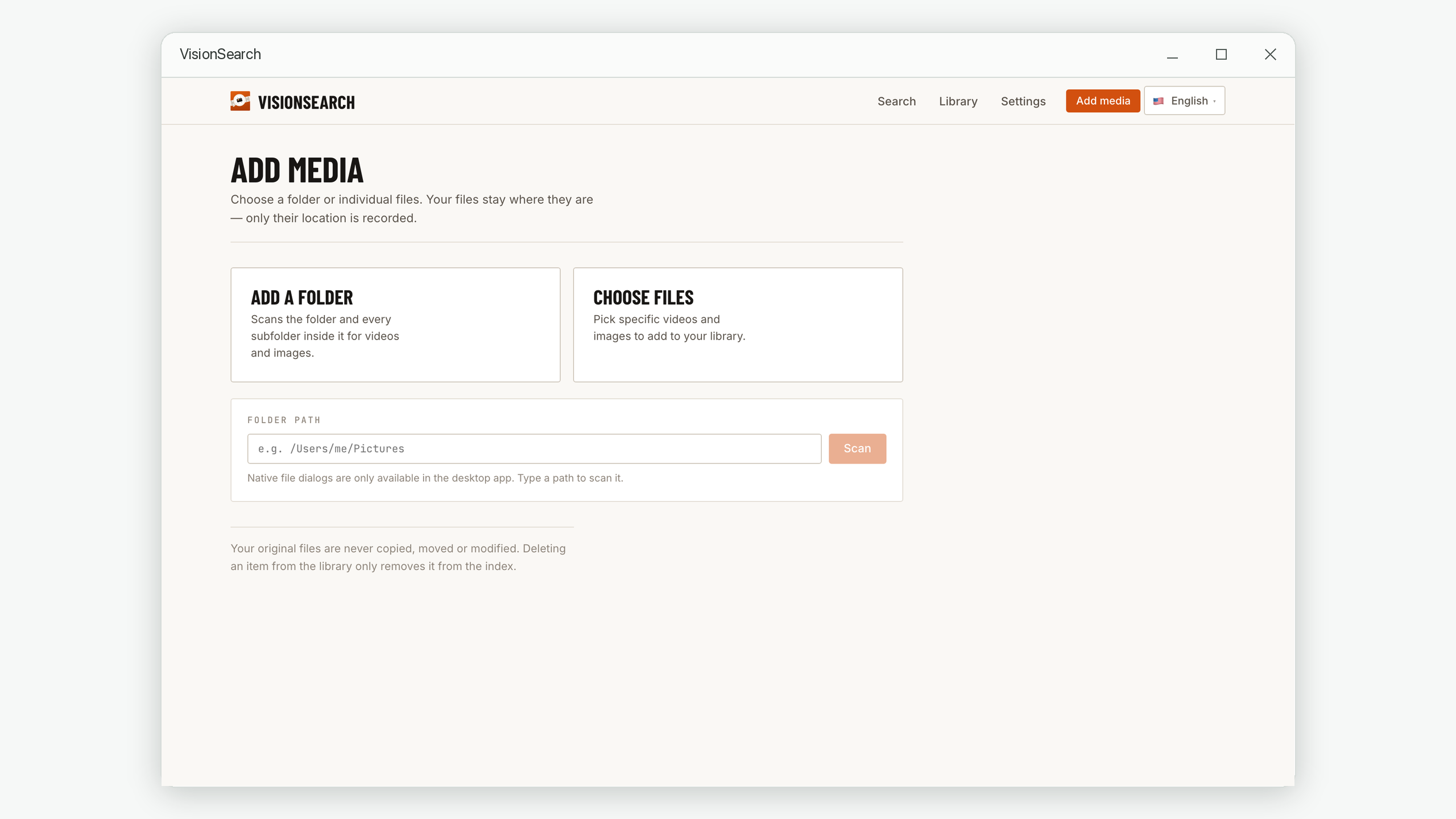
- Add the folder and let it index. This is a one-time pass that runs in the background. Stretches where nothing changes, like an empty room for three hours, are mostly skipped, so hours of stillness cost very little.
- Search your arrival first. Start with
a person coming through the front door. Open the match nearest your arrival time and watch forward. Very often the answer is in the first minute: the keys go on a shelf, into a coat pocket, or onto the counter next to the shopping. - Then follow yourself room by room. If the door shot doesn't show it, search for the next likely stop:
a person at the kitchen counter,a person hanging a coat,a person sitting on the sofa. Each search gives you a short list of moments. You only watch a few seconds of each.
If your folder also contains photos, switch the results to Video so only camera footage comes back. Every result opens at its own moment, so you can check a dozen candidates in the time it would take to scrub through one.

Step by step: finding a person
Looking for someone is easier than looking for an object, because a whole person is large and distinctive on camera. Common reasons people do this:
- Checking what time a child got home from school, or whether they went out again
- Confirming the cleaner, dog walker or carer came, and when they left
- Seeing whether an elderly relative left the house on their own
- Finding out when a visitor, delivery driver or tradesperson arrived
- Working out when the bike, the garden furniture or the parcel disappeared, and who was around at the time
Describe what the camera would see
You are not searching for a name. You are searching for how the person looks on the recording. Clothing, colours, what they carry and where they are standing do most of the work:
| Situation | Query to try |
|---|---|
| Child coming home | a child with a blue backpack at the front door |
| Dog walker | a person walking a dog on the driveway |
| Elderly relative going out | an old man in a grey coat walking out of the gate |
| A delivery | a delivery driver holding a parcel |
| Someone you glimpsed once | a person in a yellow raincoat · a man in a dark hoodie |
| Someone taking something | a person wheeling a bicycle down the driveway |
Add what they are doing or where they are when a plain description returns too much. a person matches everyone. a person opening the side gate matches the three moments you care about.
Found them once? Search with the picture
Once you have one clear frame of the person, you don't need to keep guessing at words. Take a screenshot of that frame and use it as the search instead of text. The results are other moments that look like it: the same coat, the same bag, the same figure in the same kind of setting, across every camera in the folder.
This is the fastest way to answer "where else did they go?" You find someone at the front door with a text search, then use that still to find them crossing the garden on another camera twenty minutes later. It works for objects too: a screenshot of your own backpack will find the other moments it appears.
What works well, and what doesn't
It is better to know the limits before you start than to decide the method doesn't work after one bad search.
| Works well | Struggles |
|---|---|
| People, described by clothing, colour and what they carry | Small items (keys, rings, cards) seen from across the room. Search for the person instead |
| Large objects: bags, bikes, prams, parcels, cars | Colours in night-vision footage, which is black and white. Describe shapes and actions instead |
| Actions: opening a door, sitting down, carrying a box | Something that happens in well under a second. The footage is checked about once per second, so a flick of the wrist can fall between checks. Watch a few seconds around the nearest match |
| Places: front door, driveway, kitchen counter, garden gate | The distorted edges of very wide fisheye cameras |
| Following one person or item across several cameras with a still image | Telling apart two people dressed almost identically |
Home camera footage is often dim, grainy and shot from above, so match percentages come out lower than they would on clean photos. Don't judge a result by its number. Look at the order, and open the first ten or so matches. The right moment is usually among them even when none of them score highly.
Keep it on your own computer
Footage from inside your home is about as private as video gets: your family, your routines, the layout of every room. It is also exactly the footage you would search in a situation like this.
That is a good reason to do the search locally rather than uploading hours of recordings to an online service. When the processing happens on your own Mac or PC, the footage never leaves the house, and your original files stay exactly where they are, untouched.
If what you are looking for turns out to be a break-in or damage rather than a lost item, stop and save the original recordings before anything else. Our guide to searching security camera footage covers how to export and preserve it properly for police or an insurer.
Frequently asked questions
Can a security camera show where I left my keys?
Often, yes, but not by spotting the keys themselves. In a wide shot they are too small. Search instead for the moments the camera sees clearly, like you coming through the door or standing at the counter, and watch a few seconds around each one to see where your hands went.
My camera only saves short motion clips, not continuous recording. Does this still work?
Yes. Download the clips from the relevant hours into one folder and search across all of them at once. You get a ranked list of matching moments instead of clicking through dozens of clips one by one. The catch is that anything that didn't trigger a clip was never saved, and slow or small movements often don't.
Which video files can I search?
Standard formats such as MP4, MOV, M4V, AVI and MKV. Most cameras, NVRs and camera apps can export to one of these. If yours uses its own format, look for an "export as MP4" option in its app or software.
How long does it take to prepare a day of footage?
It depends on your computer and how much actually happens in the footage. It is a one-time pass that runs in the background, and quiet stretches are mostly skipped, so a day of a mostly empty hallway goes much faster than a day of a busy street. After that, every search is close to instant, and you can search the same footage again as often as you like.
Does it recognise faces or tell me who someone is?
No. It matches what is visible, like clothing, bags, posture and where someone is standing. It does not identify people or compare faces with any database. You search for "a person in a yellow raincoat", not for a name.
Find the moment, skip the hours
Vision Search indexes your camera recordings on your own computer, so you can find the moment the keys went down or the moment someone walked in by describing it, and jump straight there. Nothing is uploaded.
macOS 14.6 or later · Windows 10 and 11. No account required.